How to Get Your YouTube Stream Key
Your YouTube stream key is the password that lets Cricket Scorer broadcast your cricket match live to your YouTube channel — no OBS, no laptop needed. This guide shows you exactly where to find it in YouTube Studio, step by step.
Quick answer
Go to YouTube Studio → Go Live → Stream. Under Stream settings, click Reveal next to the Stream key field and copy it. Paste it into Cricket Scorer's YouTube Stream Key field, then tap GO LIVE.
You'll need
- ✓A Google/YouTube account
- ✓Live streaming enabled on your channel
- ✓Cricket Scorer installed
Time needed
~3 min
(not counting the 24hr YouTube verification wait)
Cost
Free
YouTube Live and Cricket Scorer streaming are both free
How to find your YouTube stream key — step by step
Sign in to YouTube
Go to youtube.com and sign in to the Google account you want to stream from. This should be the account your cricket channel belongs to — or create a new free YouTube channel now if you don't have one.
Using a club or group YouTube channel? Make sure you're signed into that account, not your personal one. You can switch accounts by clicking your profile picture in the top right.

</div>
Open YouTube Studio
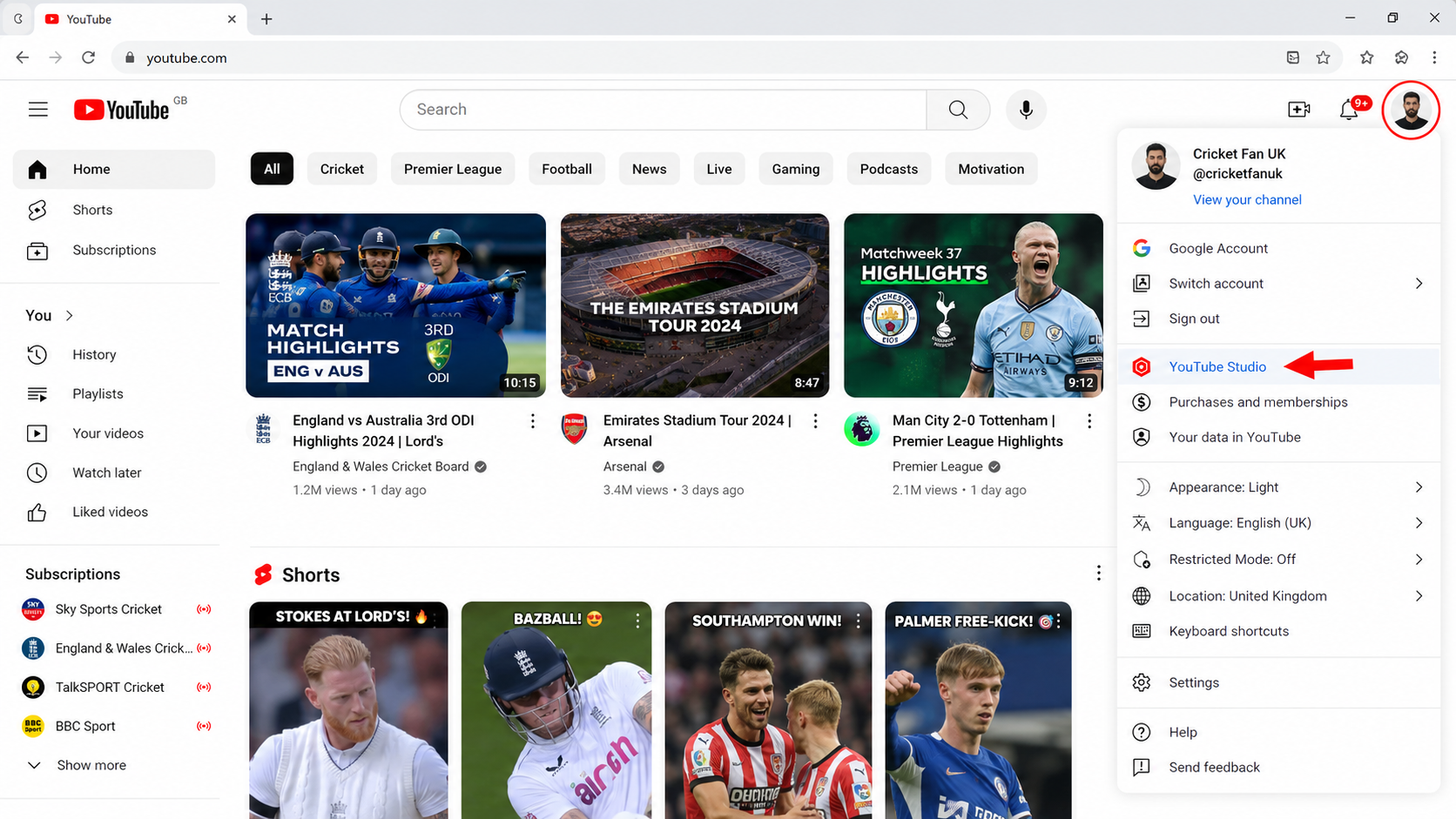
Click your profile picture in the top right corner of YouTube. From the dropdown menu, click YouTube Studio. This opens your channel dashboard.
Click Go Live (the camera icon)
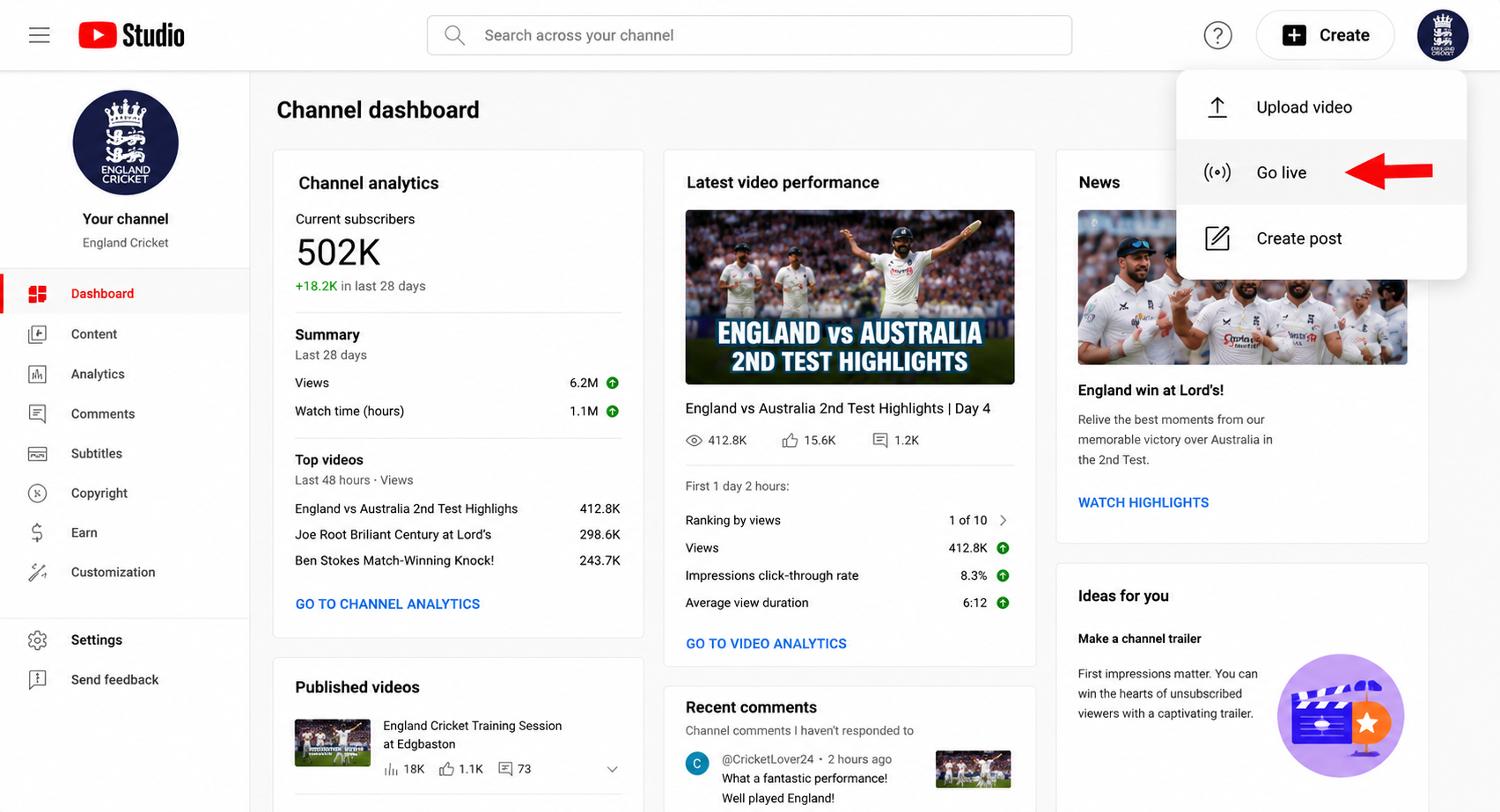
In YouTube Studio, look for the camera icon with a plus sign in the top right corner — this is the Create button. Click it, then click Go Live from the dropdown. Alternatively, you can go to youtube.com/livestreaming directly.
Select "Stream" — not Webcam or Mobile
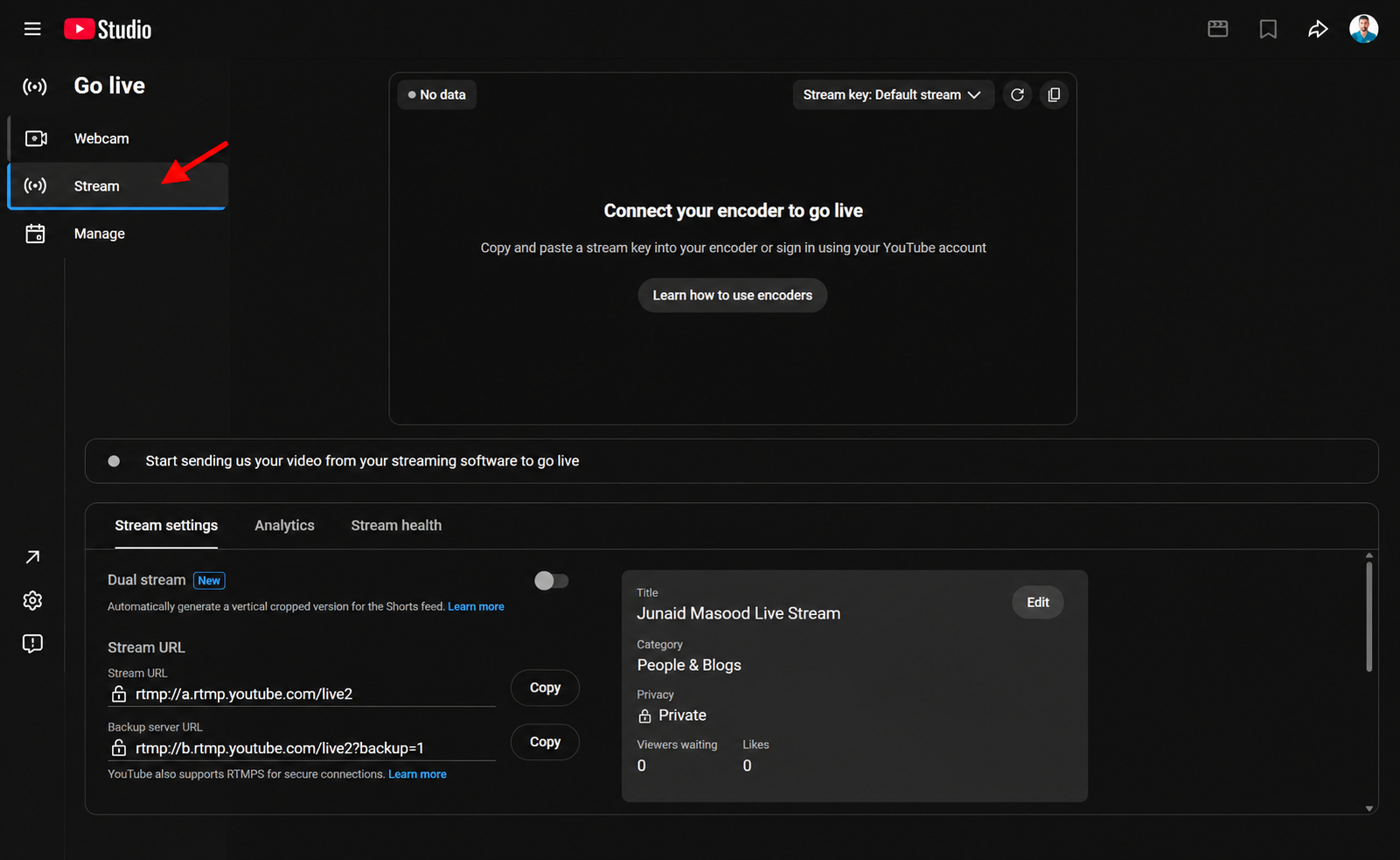
YouTube will show you three options for going live: Webcam, Stream, and Mobile. Click Stream. This is the RTMP method — the one Cricket Scorer uses to broadcast your match.
Don't select Webcam or Mobile. Those use YouTube's own camera interface and won't work with Cricket Scorer. You need the Stream tab to get an RTMP stream key.
Set up your stream details
You'll see a form to fill in your stream's title, visibility, and settings. Give your stream a title — for example "Sunday Smashers vs Park Lane XI — 20 July 2025". Set visibility to Public (so your group can find it) or Unlisted (so only people with the link can watch).
Schedule vs Right now: You can either schedule a stream in advance or start one right now. For most Saturday/Sunday matches, click Stream now.
Find and copy your stream key This is the one
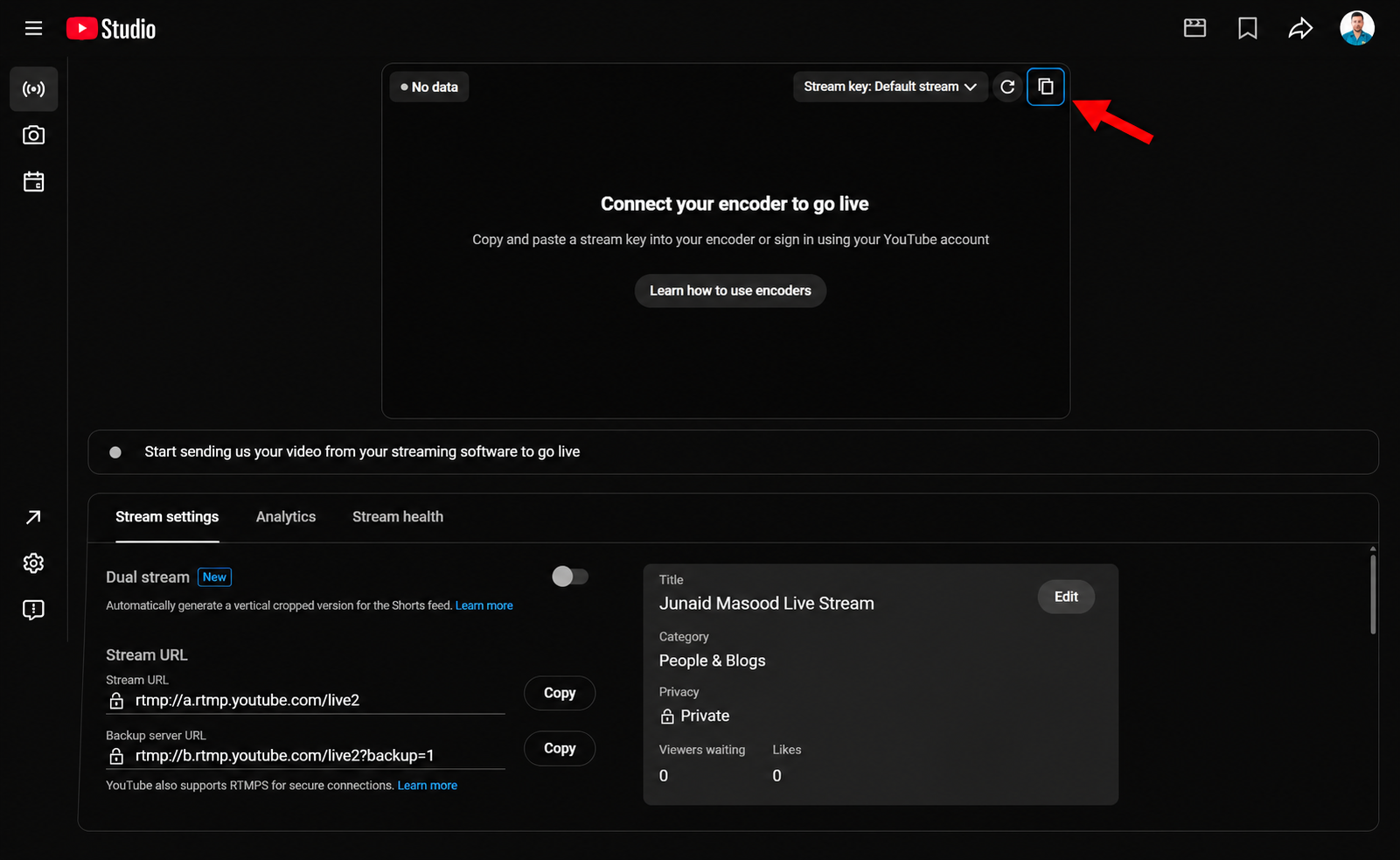
Click Stream settings (or scroll down to it). You'll see a Stream key field — the value is hidden by default. Click Reveal to show it, then click Copy to copy the key to your clipboard.
What you'll see
Stream key
••••••••••••••••••••
Stream URL: rtmp://a.rtmp.youtube.com/live2
Never share your stream key publicly. Anyone who has it can stream to your YouTube channel. If it's ever leaked, go back to this screen and click Reset to generate a new one.
Paste it into Cricket Scorer and go live
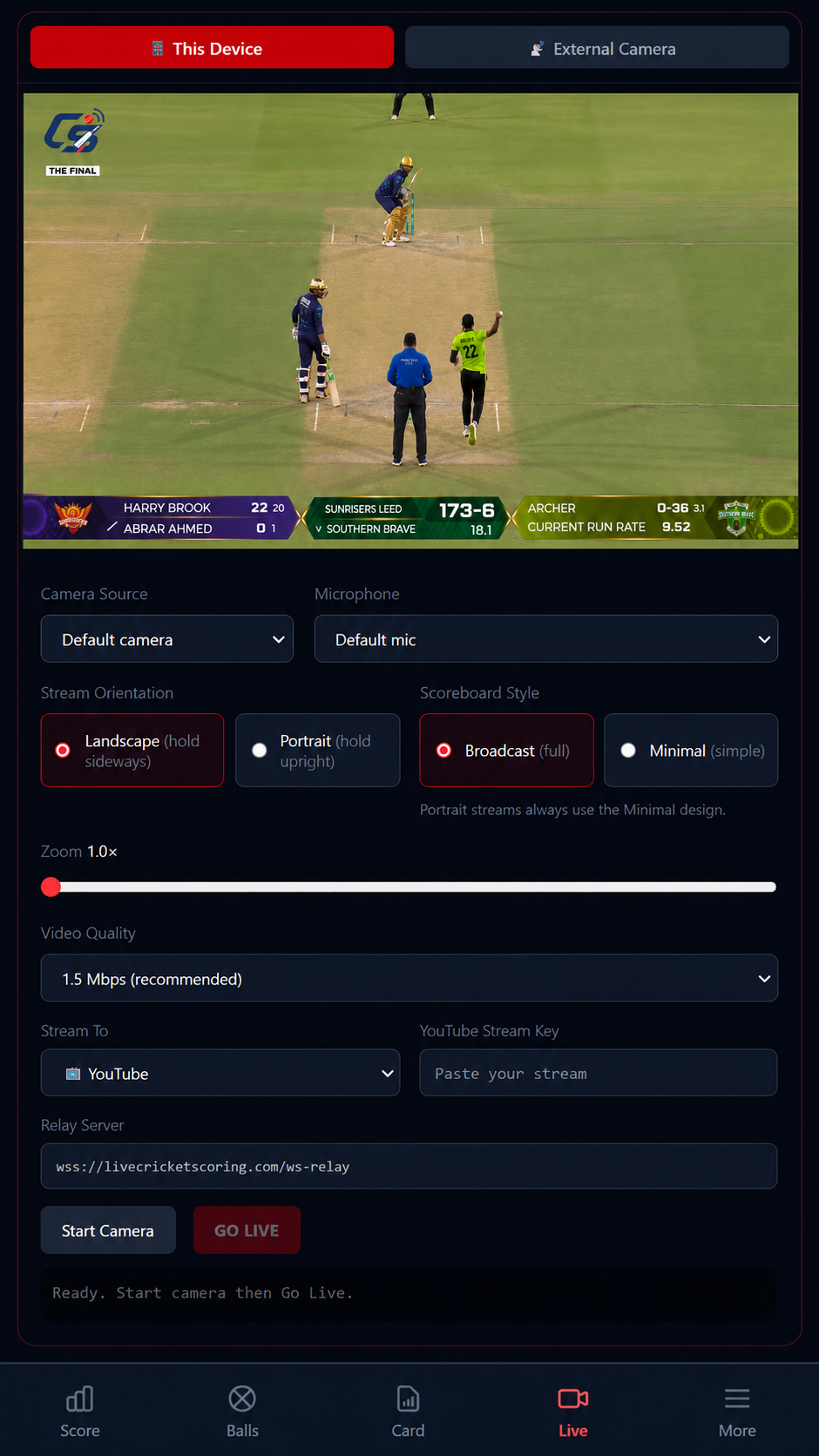
Switch to Cricket Scorer. Tap the Live tab at the bottom of the screen. In the Stream To dropdown, select YouTube. Tap the YouTube Stream Key field and paste your key. Set your camera, microphone, orientation and video quality, then tap Start Camera followed by GO LIVE.
Your match will be live on YouTube within a few seconds. Share the YouTube link in your WhatsApp group and your mates can watch from anywhere.
Persistent key tip: Your stream key doesn't change between streams unless you reset it. Save it somewhere safe (like your phone notes) so you don't have to go back to YouTube Studio every match day.
Persistent key vs per-stream key — which should you use?
YouTube gives you two options when you set up a stream:
| Persistent stream key | Per-stream key | |
|---|---|---|
| Changes between matches | No — stays the same | Yes — new key each stream |
| Convenience | Paste once, reuse every match | Copy a fresh key each time |
| Best for | Saturday/Sunday regulars | One-off or occasional streams |
For most UK cricket groups streaming regular Saturday or Sunday matches, the persistent stream key is the right choice — you set it up once in Cricket Scorer and it works for every game.
Common questions
Where do I find my YouTube stream key?
YouTube Studio → Go Live → Stream → Stream settings → click Reveal next to the Stream key field and copy it.
Can I reuse my YouTube stream key every match?
Yes — the persistent stream key stays the same between streams unless you reset it. Paste it into Cricket Scorer once and reuse it every match.
Do I need to verify my YouTube channel before streaming?
Yes. YouTube requires phone verification and then a 24-hour wait before your first live stream is unlocked. Do this well before match day — not on the morning of the game.
Is my YouTube stream key the same as the RTMP URL?
No — the stream key and the RTMP server URL are two separate things. Cricket Scorer only needs your stream key — the relay server address is already built into the app. You don't need to touch the RTMP URL.
What if my stream key isn't working?
First, check that live streaming is still enabled on your YouTube channel. Then go back to YouTube Studio → Go Live → Stream settings and copy the key again — make sure there are no spaces before or after it when you paste it into Cricket Scorer. If it still fails, click Reset in YouTube Studio to generate a fresh key.
Next steps
Page
How to live stream with Cricket Scorer →
Full streaming guide with portrait and landscape setup.
Guide
How to get your Facebook stream key →
Same steps for Facebook Live — RTMP key from Live Producer.
Guide
How to live stream cricket free →
Everything in one place — stream any Saturday match for free.
Stream key in hand?
You're ready to go live. Install Cricket Scorer, paste your key into the Live tab, and broadcast your next Saturday or Sunday match to YouTube — free.