How to Score a Cricket Match on Cricket Scorer
One person scores from a phone at the boundary. Everyone else just plays. This guide walks you through the recommended setup — club → tournament → match — and then exactly how the scoring screen works, ball by ball.
Quick answer
The recommended route is Club → Tournament → Match → Score. Create a club, add a tournament inside it, create your match inside the tournament, then tap the scoring screen and record each ball. All stats, standings and scorecards are saved automatically. If you just want to score a one-off game right now, use Quick Match instead.
You'll need
- ✓Cricket Scorer installed
- ✓Your players' names
- ✓A phone with a charged battery
Setup time
~5 min
Club + tournament + match setup before the toss
Works offline?
Yes
Score the whole match without signal — syncs when back online
The recommended structure: Club → Tournament → Match
Cricket Scorer is designed around a three-level structure. You don't have to use all three — Quick Match lets you skip straight to scoring — but setting up a club and tournament properly means every match you score automatically builds your player stats, standings, and season records.
Club
Your group, team, or club. Add all your players here once — they're available for every match from then on.
Tournament
A series, cup, or league inside the club. Standings and net run rate update automatically as you score each match.
Match
A single game inside the tournament. This is where you score ball-by-ball. Stats feed back up to the tournament and club automatically.
Just want to score a one-off game?
Use Quick Match. It skips the club and tournament setup and takes you straight to scoring. Quick matches are scored exactly the same way — the only difference is that they don't feed into a standings table or season stats. Great for a casual knockabout; less ideal if you want to track your group over a whole summer.
Create your club
Open Cricket Scorer and go to Clubs
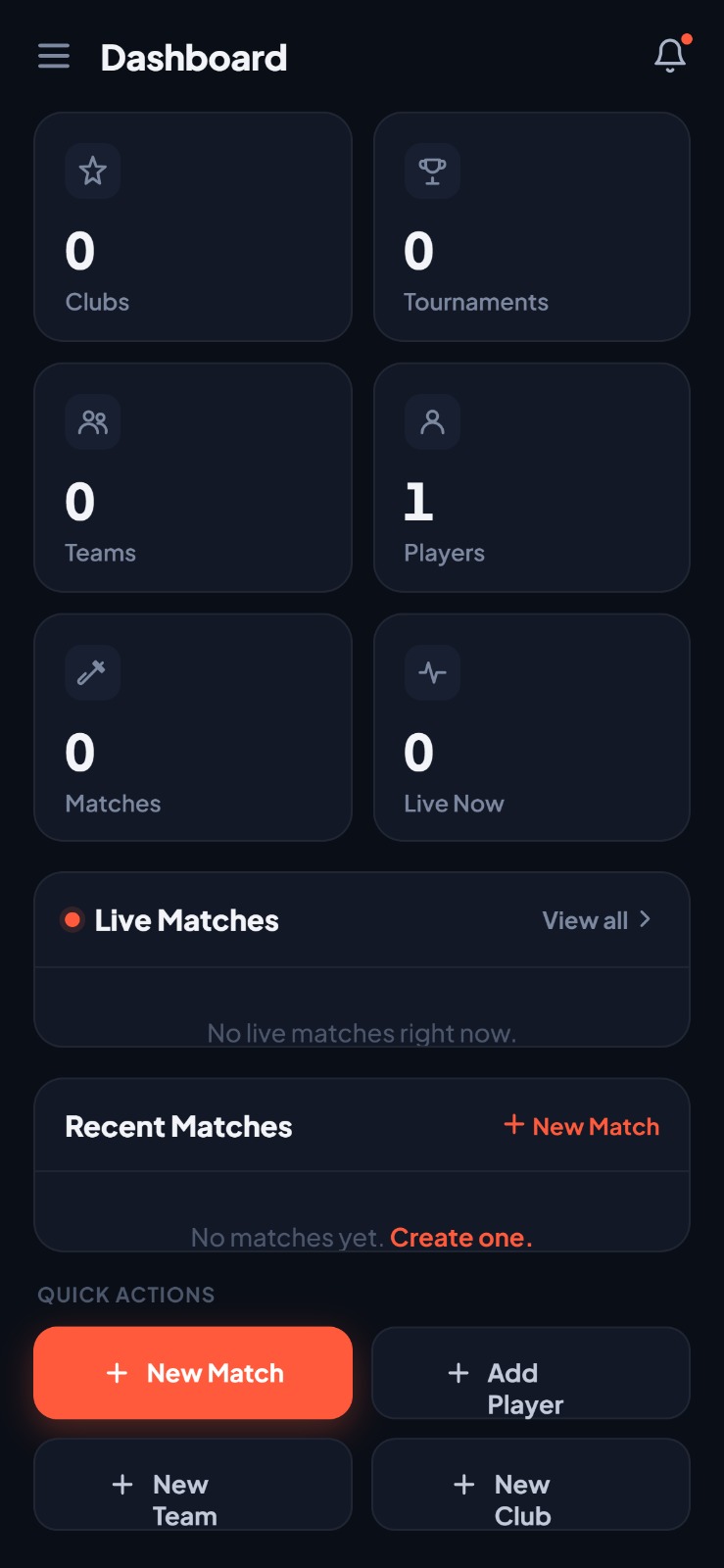
Open Cricket Scorer in your mobile browser. From the home screen, tap Clubs or My Clubs in the navigation. Tap Create Club and give your club a name — your group name, team name, or anything you like.
Do this before match day. Setting up the club and adding players takes about 5 minutes. Do it at home the night before rather than at the ground with everyone waiting.
Add your players
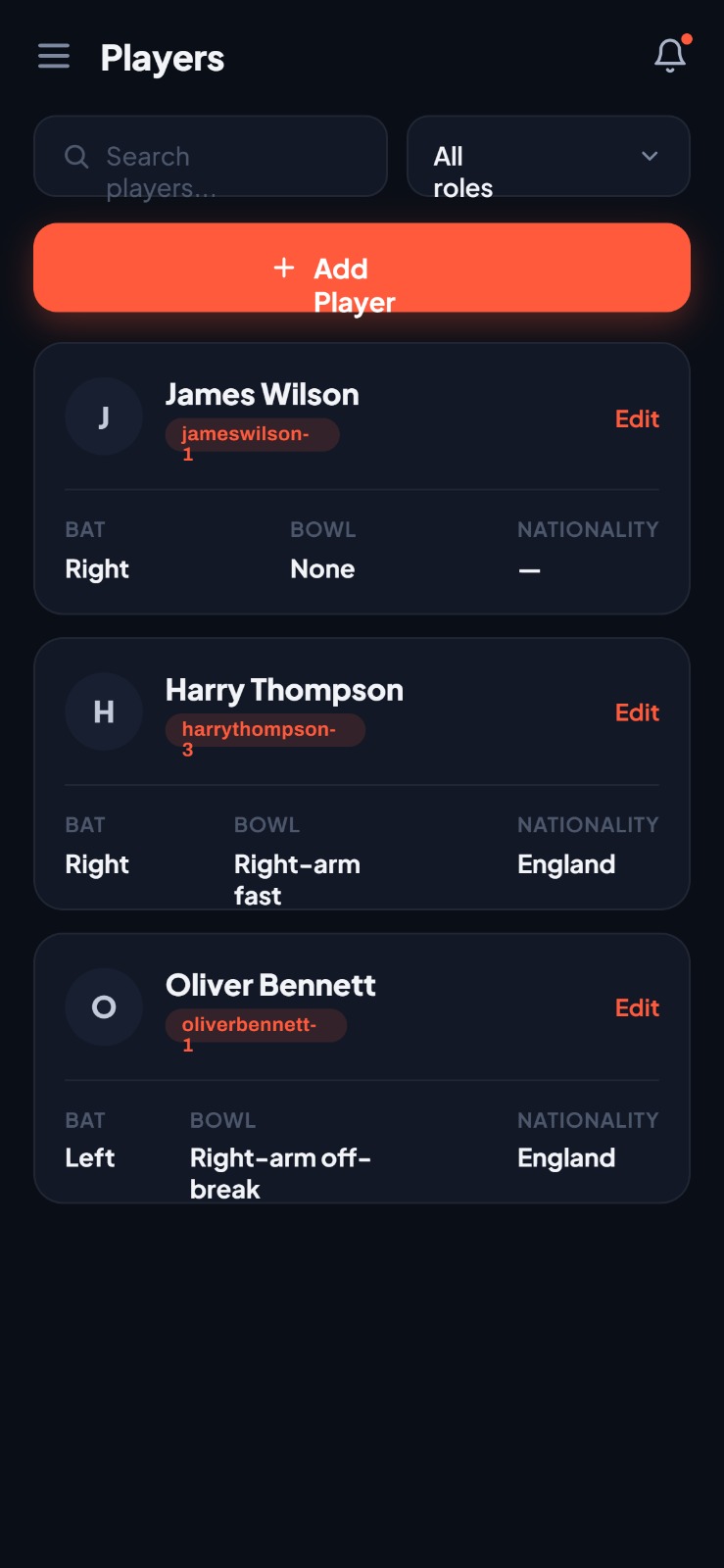
Inside your club, tap Players then Add Player. Enter each player's name. You only need to do this once — every time you create a match inside this club, these players are available to select. No re-entering names every week.
Add everyone in the group, not just your regular XI. If someone new turns up on a Sunday, you can add them on the spot before the match starts.
Create a tournament inside your club
Go to Tournaments and create one
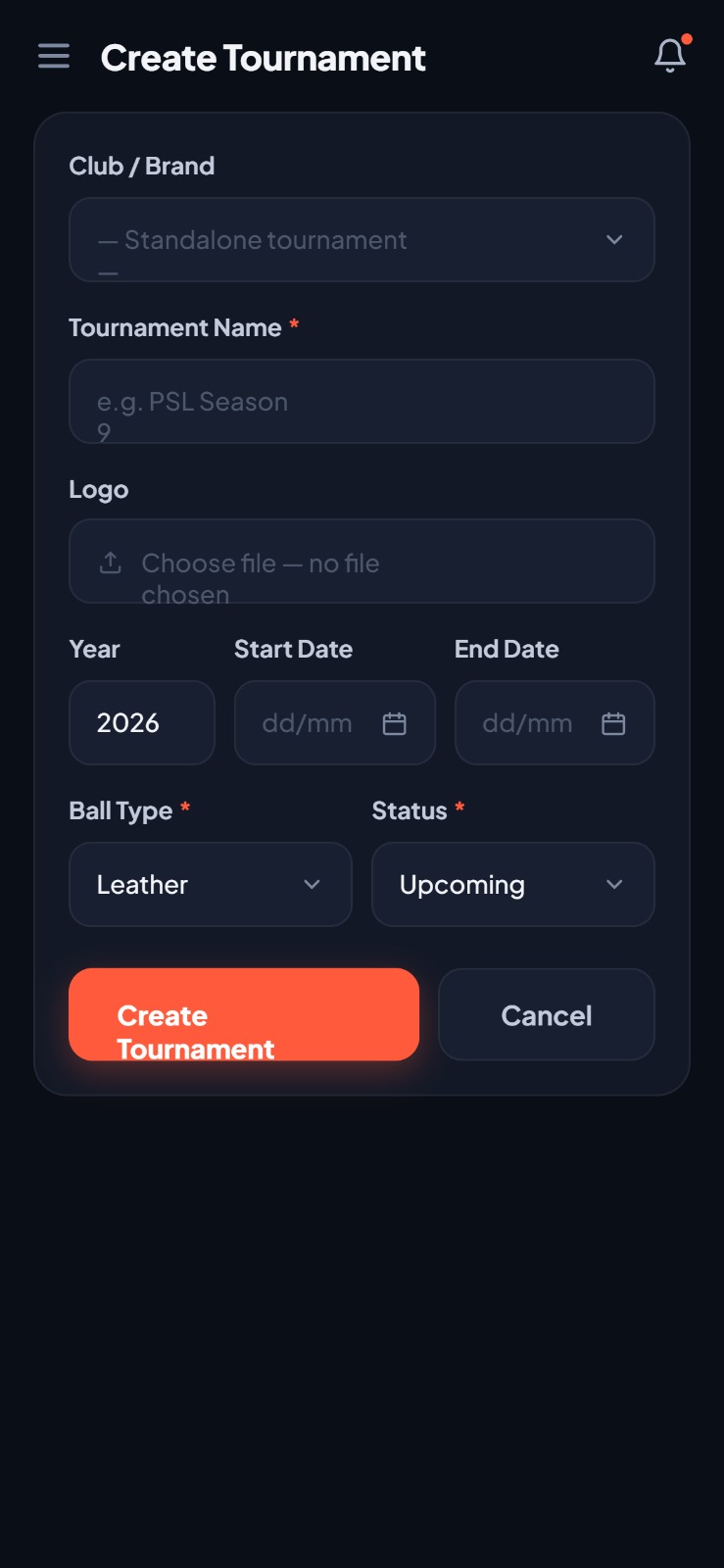
Inside your club, tap Tournaments then Create Tournament. Give it a name — "Summer Series 2025", "Office Cup", "Bank Holiday Weekend" — whatever fits. Set the format (round robin, knockout, or a simple series) and the default overs per match.
Everything you score inside this tournament feeds the points table and net run rate automatically. You don't have to calculate anything yourself.
Add teams to the tournament
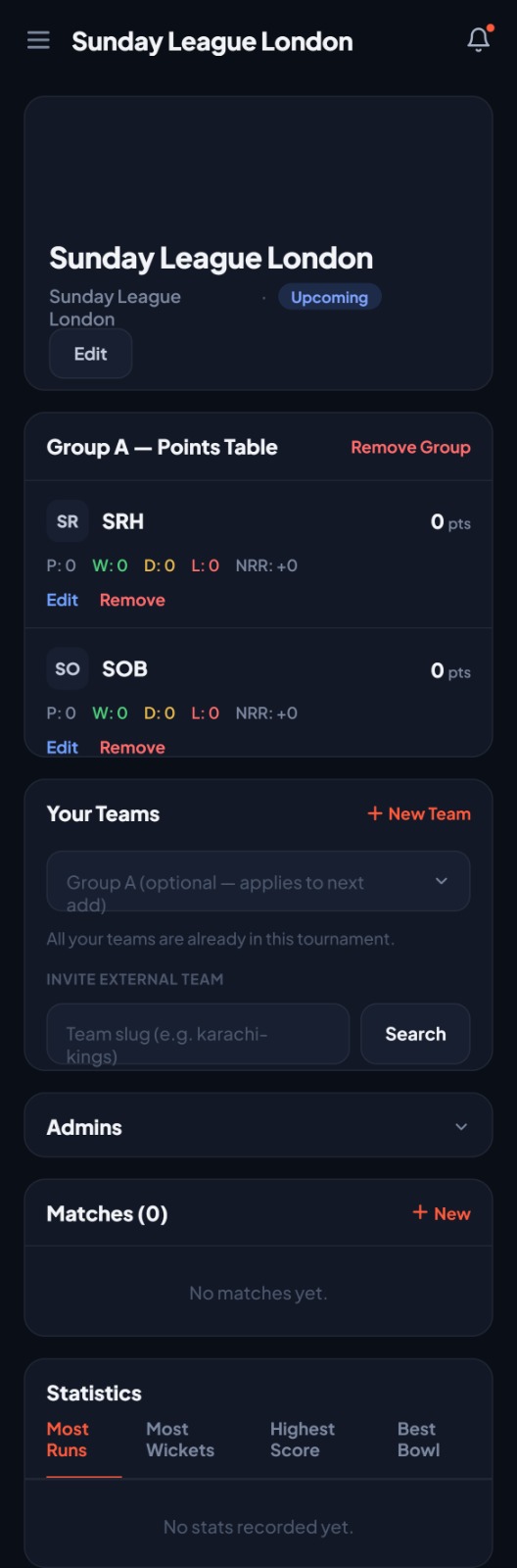
After creating the tournament, add the teams that are playing. Select players from your club roster for each team — or add a guest team if you're playing against a different group. Teams and their players are now ready to pick when you create each match.
Tip for mixed groups: If you split the same group into two sides every Sunday, just name the teams something consistent — Red vs Blue, or even by the two captains' names. Keeps the stats readable over a whole summer.
Create the match
Create a new match inside the tournament
Inside the tournament, tap Matches then Create Match. Select the two teams playing, confirm the number of overs (you can override the tournament default here), set the date, and pick the venue if you want to.

Record the toss
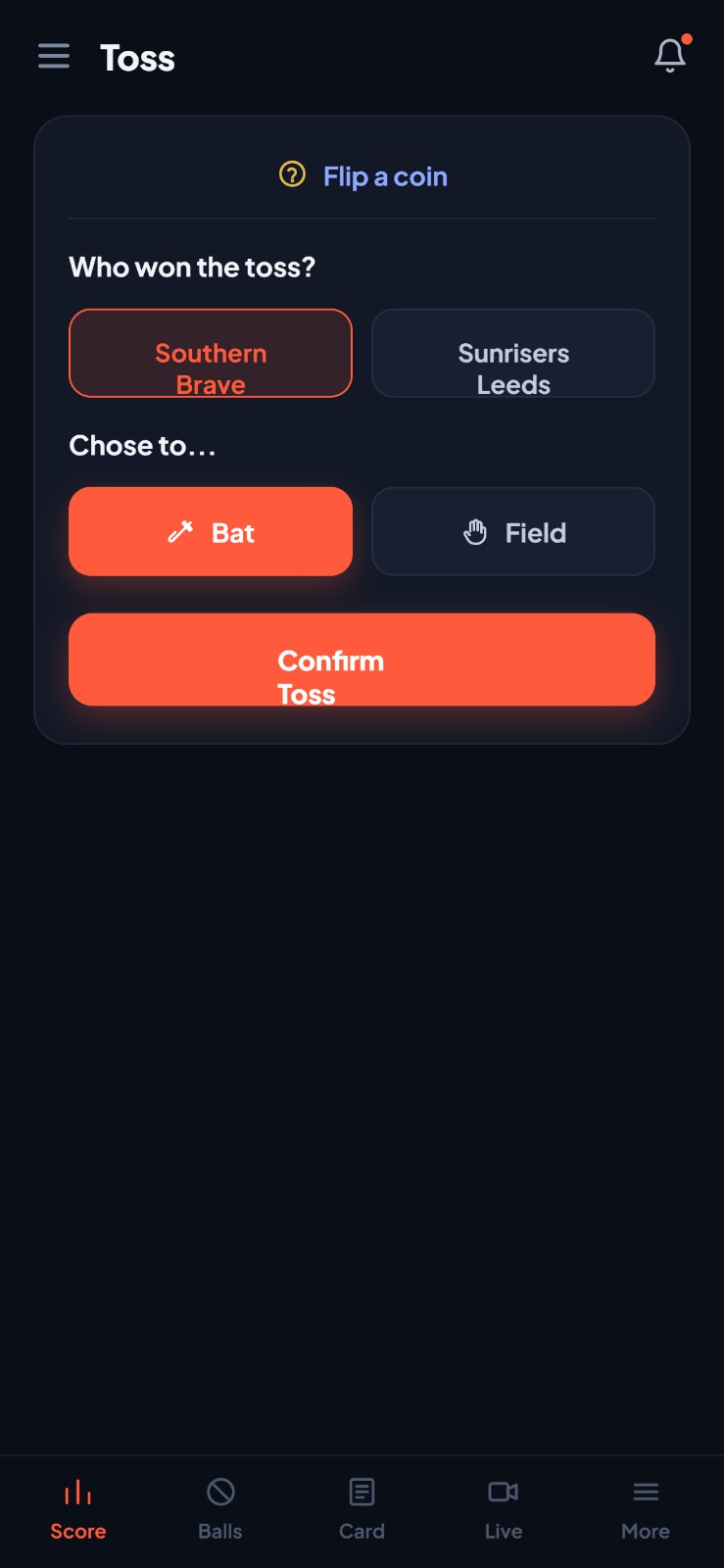
Before scoring starts, Cricket Scorer will ask you to record the toss — who won it and what they chose (bat or field). Tap the winner and their decision. This appears on the scorecard and is used for stats.
Don't skip the toss. It locks in the batting order for the first innings and makes sure the right team is listed as batting first on the scorecard.
Scoring the match — ball by ball
This is the main event. One person holds the phone at the boundary and taps after each ball. Here's what every part of the scoring screen does.

Top bar — Match status
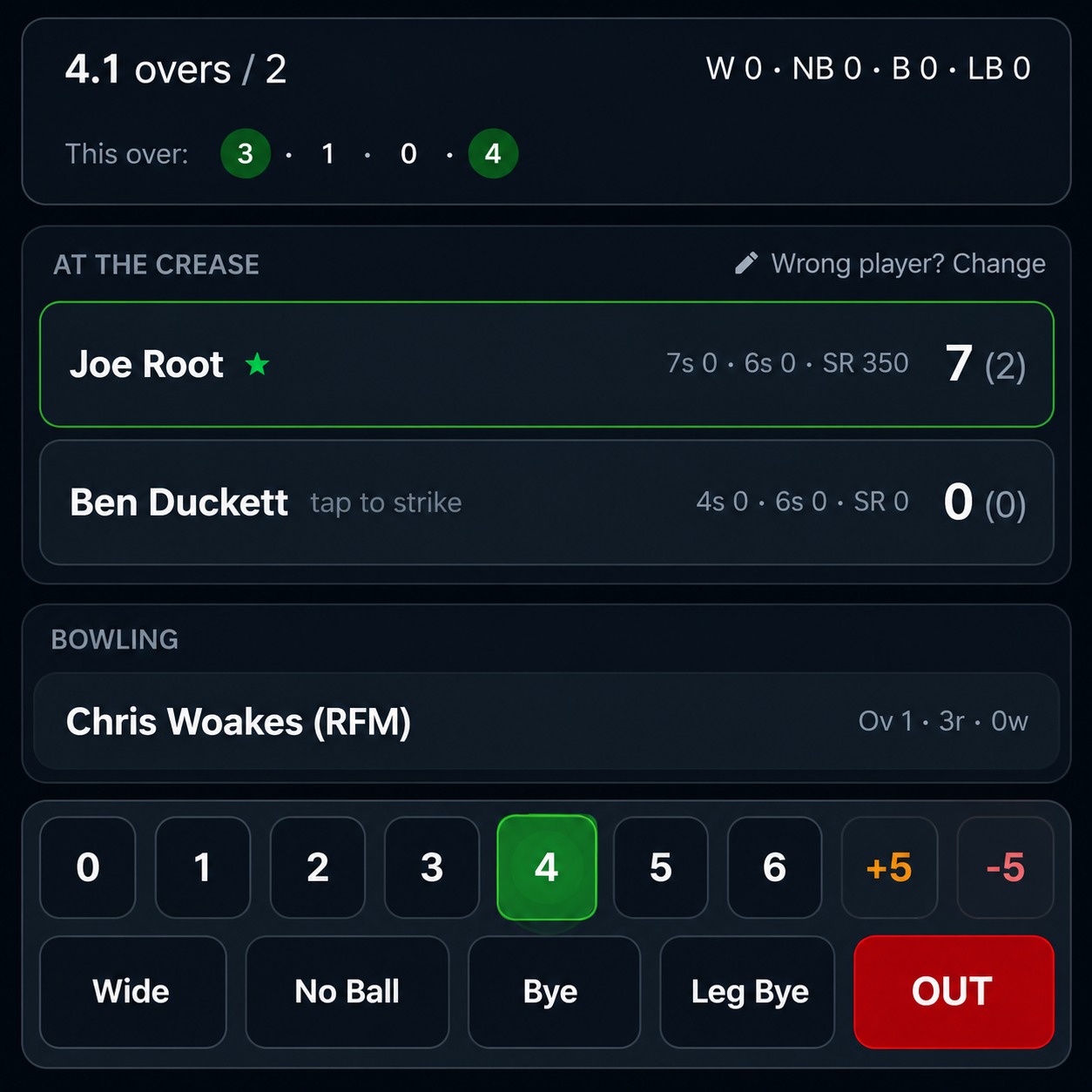
Shows the match name (WAR vs HUN), current score (3/0), overs (0.1 overs / 2 — first ball of the match, 2-over game), and extras breakdown (W, NB, B, LB). The green dot shows the current over's balls. This updates live after every tap.
At the Crease
Shows the two batsmen currently batting — Muhammad Zaid (on strike, starred) and Sharjil Bin Yousaf. For each, you can see their 4s, 6s, strike rate, runs scored, and balls faced. Tap tap to strike to swap who's on strike if needed. If the wrong player is shown, tap Wrong player? Change.
Bowling
Shows the current bowler (Fahad Ali (Adv)) with their over, runs and wickets so far. At the start of each new over, Cricket Scorer will prompt you to select the next bowler from the fielding team.
Scoring buttons
The number buttons (0 1 2 3 4 5 6) record runs off the bat. The +5 button records 5 penalty runs. The -5 removes 5. Below those: Wide, No Ball, Bye, Leg Bye for extras. The red OUT button records a wicket — Cricket Scorer will then ask for the dismissal type and the incoming batsman.
Undo & End Innings
Made a mistake? Tap the Undo button in the top right to reverse the last ball. When the innings is over (all overs bowled or all out), tap End Innings to switch to the second innings.
Bottom navigation
The tab bar at the bottom switches between Score (the main scoring screen shown here), Balls (ball-by-ball log), Card (full scorecard view), Live (streaming setup) and More (match settings and sharing the live link).
Scoring a normal ball
For every ball bowled, tap the number of runs scored — 0 for a dot ball, 1 2 3 for singles/twos/threes, 4 or 6 for boundaries. The score, overs, and both batsmen's totals update immediately. The strike rotates automatically on odd runs.
Recording extras
Tap the relevant extras button for the type of delivery:
| Button | When to tap it | Counts as a ball? |
|---|---|---|
| Wide | Ball bowled outside the wide line | No — re-bowled |
| No Ball | Bowler oversteps or illegal delivery | No — re-bowled |
| Bye | Batsman misses, runs taken — no edge | Yes |
| Leg Bye | Ball hits batsman's body, runs taken | Yes |
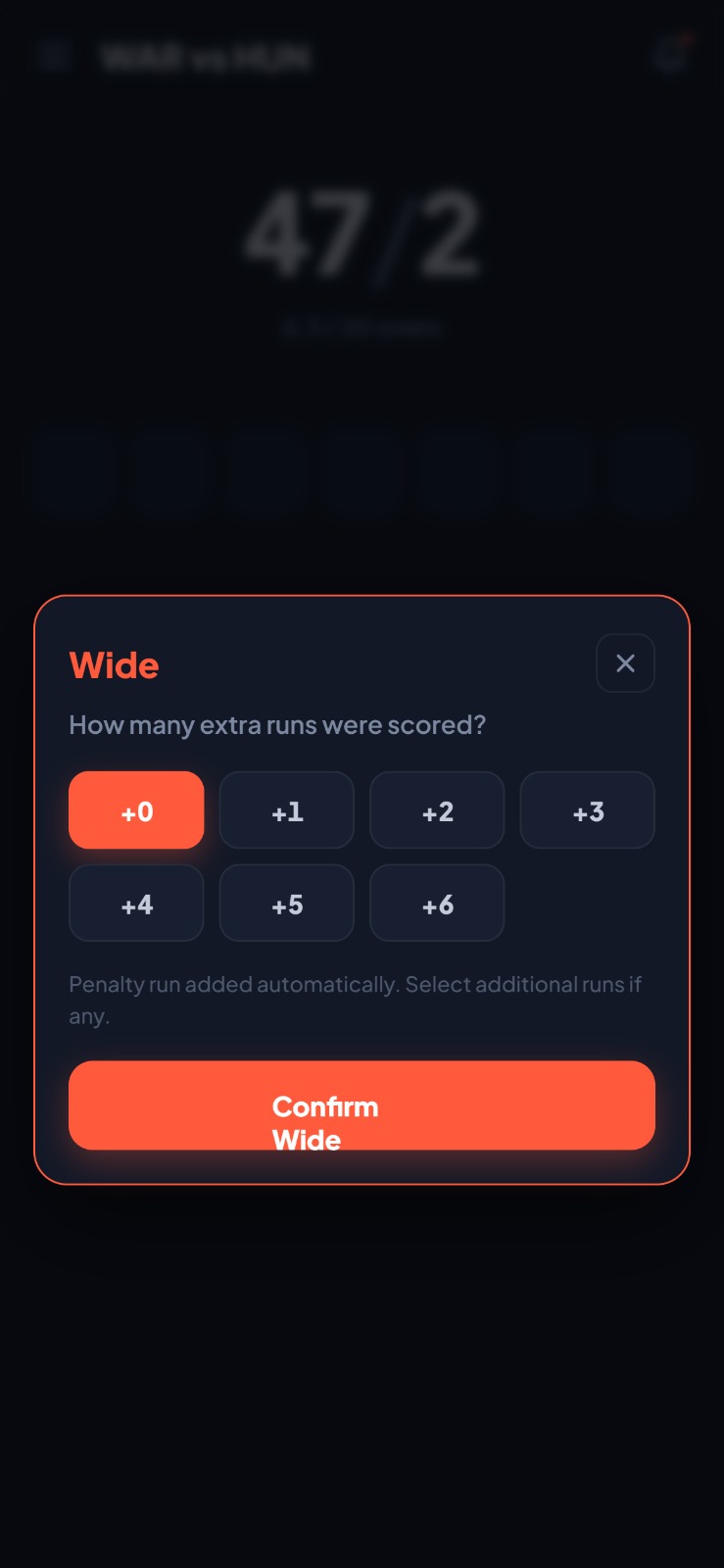
For a wide with runs (e.g. batsmen run two off a wide), tap Wide first — Cricket Scorer will prompt for the additional runs.
Recording a wicket
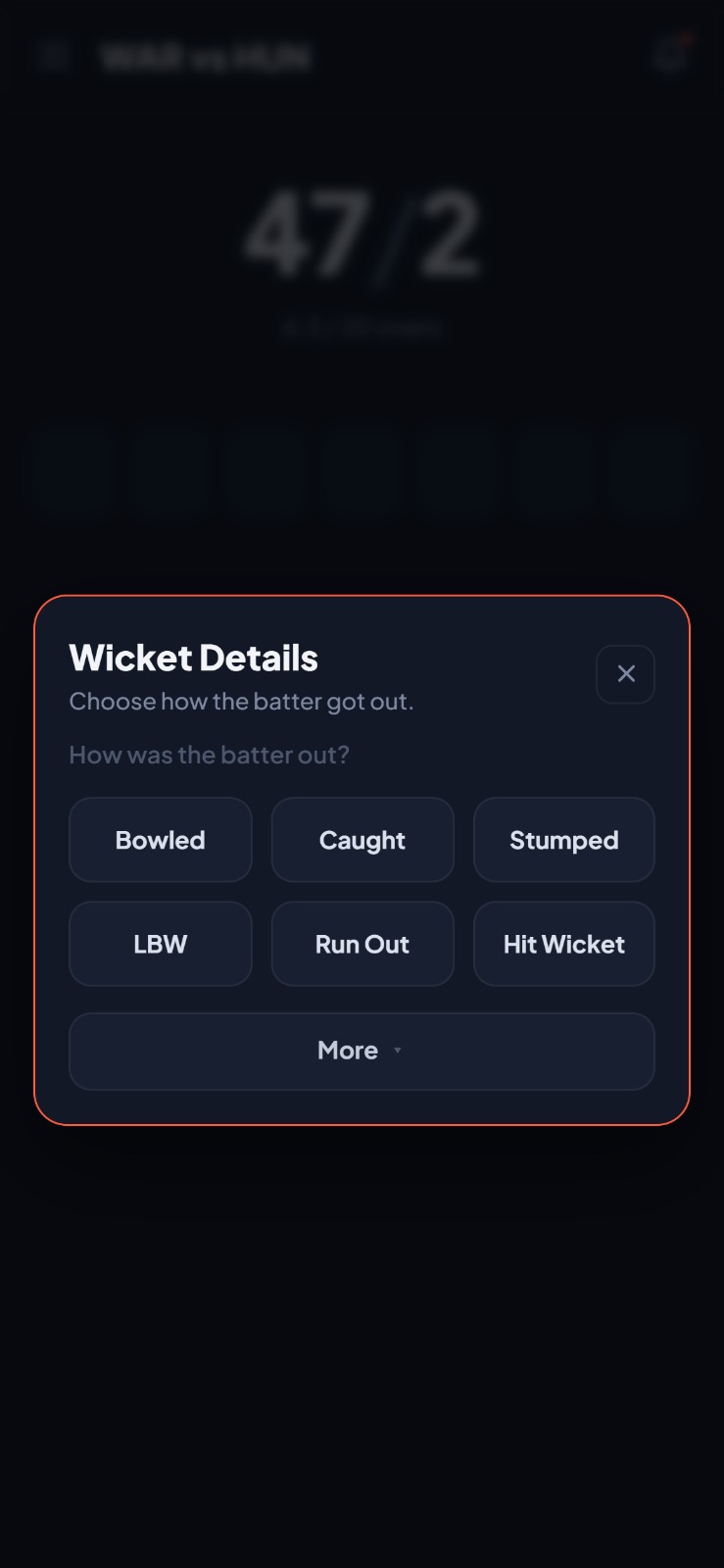
Tap the red OUT button. Cricket Scorer will ask how the batsman was dismissed — bowled, caught, LBW, run out, stumped, and so on. Select the dismissal type. If there's a fielder involved (caught, run out), select their name from the fielding team. Then select the incoming batsman to continue scoring.
Tapped OUT by mistake? Hit Undo immediately — before the next ball is bowled. Undo reverses the last action, including a wicket entry.
End of over — selecting the next bowler
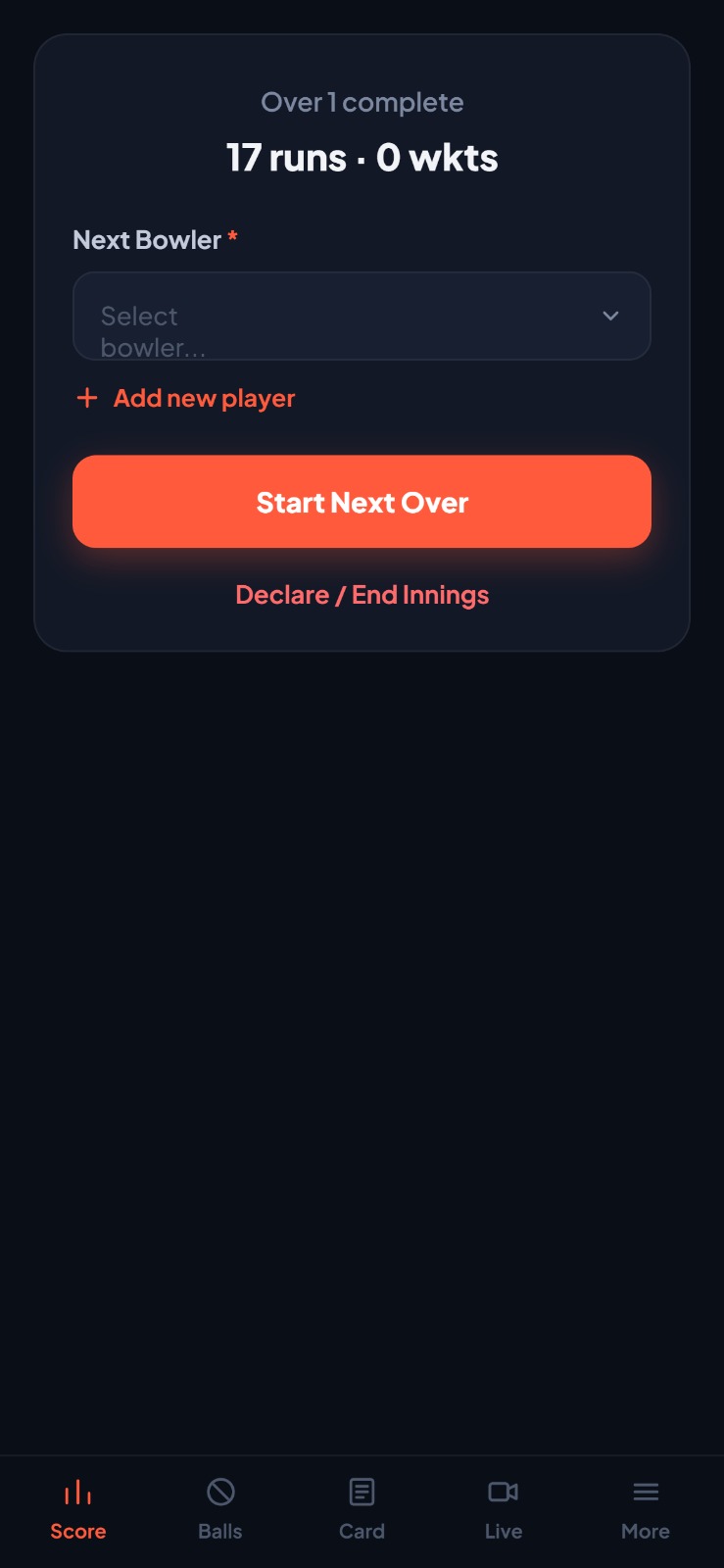
After the 6th legitimate ball of an over, Cricket Scorer will automatically prompt you to select the next bowler from the fielding team's player list. Tap their name and scoring continues. The strike swaps to the correct end automatically.
End of innings and match result
End the first innings
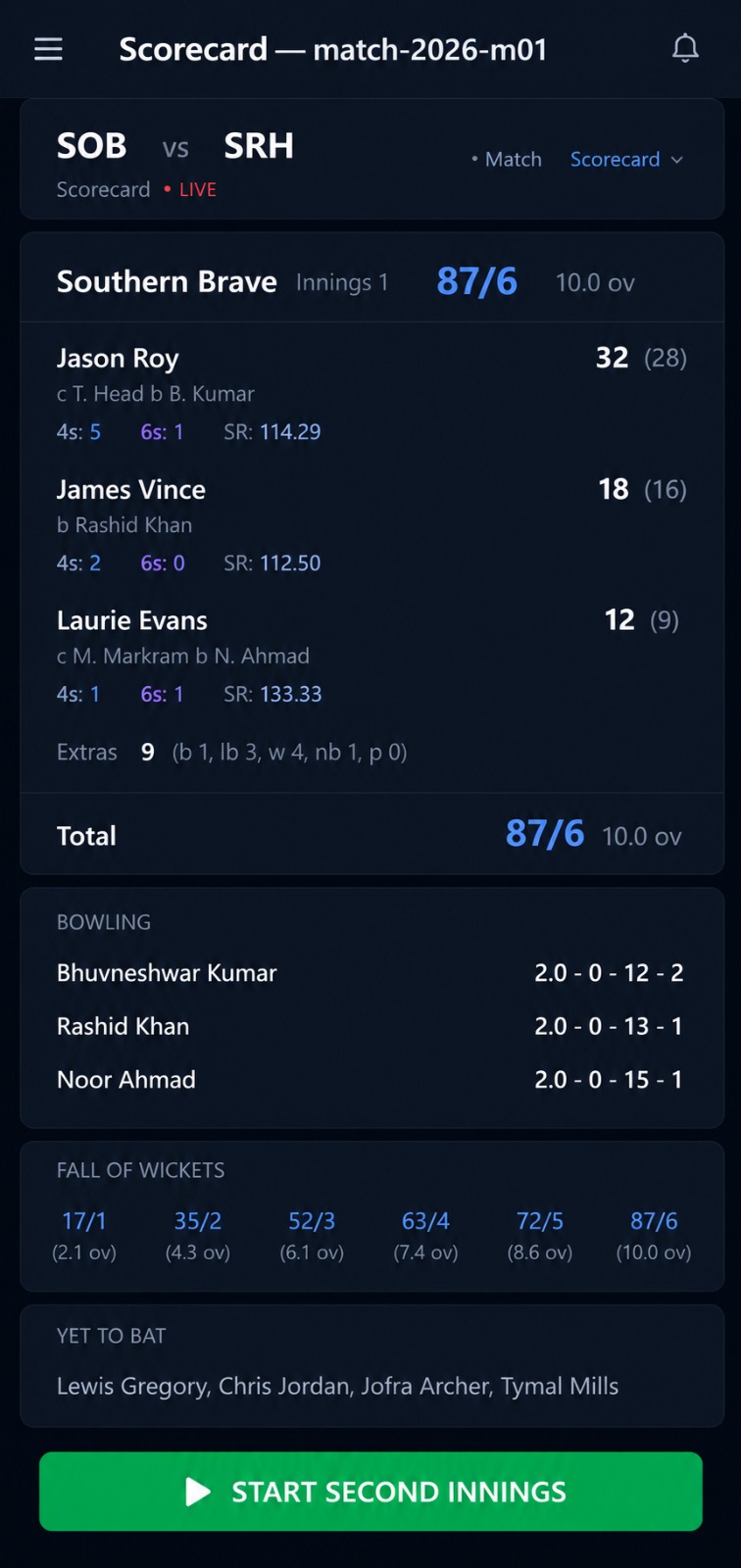
When all overs are bowled or the batting team is all out, tap End Innings in the top right corner of the scoring screen. Cricket Scorer will show you a summary of the first innings — total runs, wickets, overs — before switching to the second innings. The target is automatically calculated and shown at the top of the scoring screen.
Score the second innings and finish the match
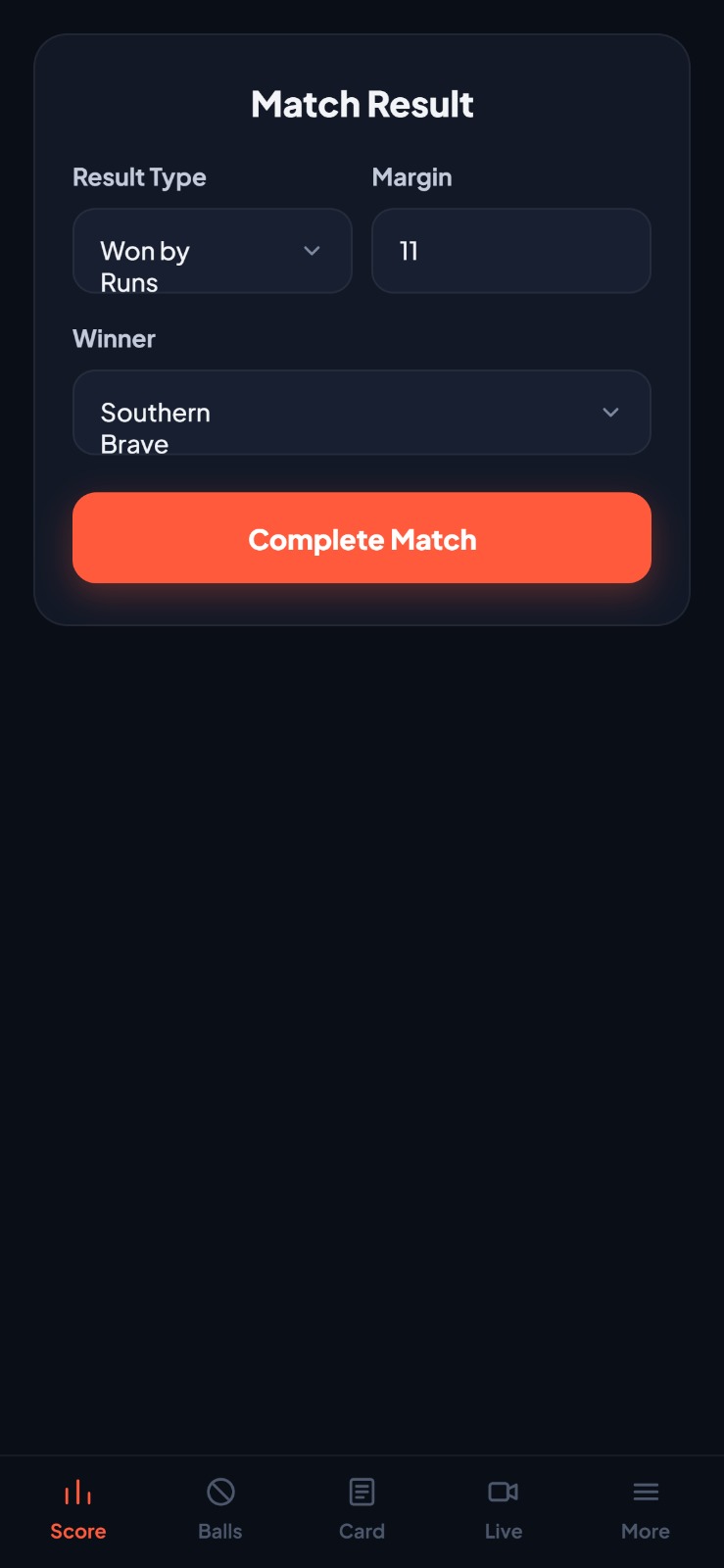
The second innings scores exactly the same way. The target is shown at the top — e.g. Target: 88. When the match is won (target reached), lost (all out or overs complete), or tied, tap End Match. Cricket Scorer calculates the result, saves the full scorecard, and updates the tournament standings automatically.
Scorecard saved forever. Every match you score is saved to your tournament and club history. Go to the match card at any time to view batting and bowling scorecards, ball-by-ball logs, and player stats.
While you're scoring
Share the live scorecard link
While you're scoring, anyone can follow the match in real time. Tap More in the bottom nav, then Share live scorecard. Copy the link and drop it in your WhatsApp group — your mates, family, and anyone who couldn't make it can watch the score update ball-by-ball from any device.
Common questions
Do I need to create a club before scoring a match?
No — use Quick Match to start scoring immediately. But creating a club and tournament means all your stats, player records and standings are tracked automatically across every match you play.
Can I undo a wrong score entry?
Yes. Tap the Undo button in the top right of the scoring screen to reverse the last ball entered. Works for runs, extras, and wickets.
Does Cricket Scorer work offline at the ground?
Yes. You can score the entire match with no signal — everything saves on-device and syncs when you're back online. The live scorecard link won't update in real time without a connection, but the local scoring continues uninterrupted.
Can someone else follow the score live while I'm scoring?
Yes. Tap More → Share live scorecard to get a link. Anyone with the link can follow the score updating ball-by-ball on their own phone — no app or account needed on their end.
What's the difference between a Wide and a No Ball?
A Wide is a delivery too wide for the batsman to play — 1 extra run added, ball not counted. A No Ball is an illegal delivery (overstepping, dangerous bouncer etc.) — 1 extra run added, ball not counted, and the next ball is a free hit in most formats. Both are re-bowled and neither counts towards the over.
Related guides
Guide
Cricket scoring rules explained →
What counts as a wide, no ball, bye — the full scoring rules.
Feature
Stream your match to YouTube or Facebook →
Score and stream at the same time — free from your phone.
Guide
How to organise a cricket tournament →
Set up fixtures, standings, and run a full summer series.
Ready to score this weekend?
Install Cricket Scorer free, set up your club and tournament in 5 minutes, and score your next Saturday or Sunday match ball-by-ball from your phone.